
Writing your own code
When blocks can’t do what you imagine, turn on Edit and write the code yourself.
Blocks are a great place to start, but one day you’ll want to do something they don’t cover. When that happens, Creator Studio lets you level up and edit the code directly — and everything you made with blocks is still there, as your starting point.
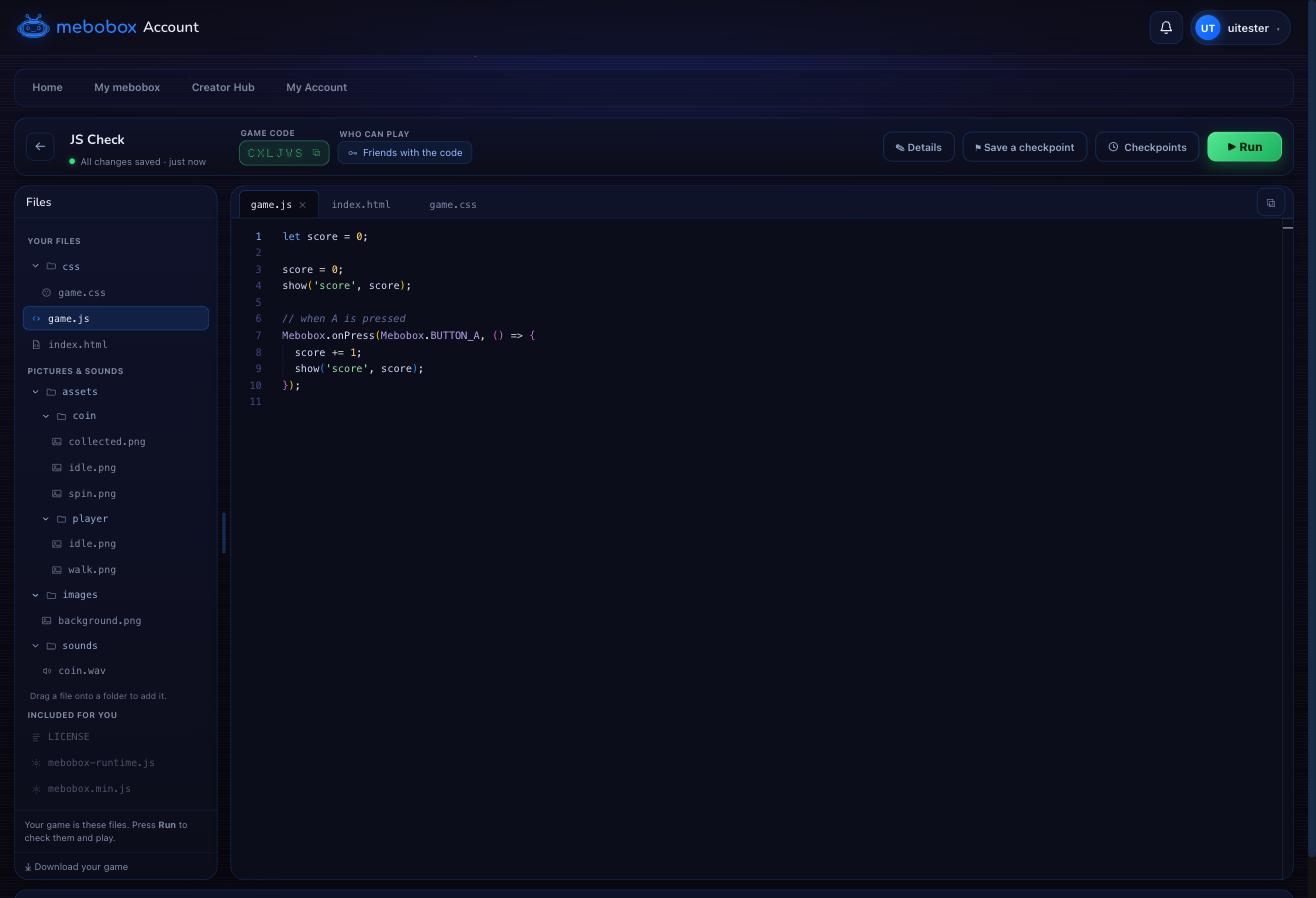 Your game is just a few files you can edit. On the left is everything in it; on the right, the code.
Turning on Edit
In Creator Studio, press Turn on Edit. Before anything changes, Creator Studio saves a checkpoint of your blocks — so you can always come back to exactly where you were. There’s no way to lose your work.
Once Edit is on, the blocks step aside and you edit the files yourself.
Your game is three files
Every mebobox game is made of a few plain files, and now they’re yours to change:
- game.js — the code that makes your game do things. This is where you spend most of your time.
- index.html — the page your game lives in, and the things on the screen.
- css/game.css — how everything looks: colours, sizes, positions.
It’s ordinary web code — the same JavaScript, HTML and CSS the whole web is built from. What you read is exactly what runs; there’s no hidden step in between.
Drawing, and the three layers
Your game draws with four functions, and each one takes an optional layer on the end:
drawSprite(sprite('player', 'idle'), player);            // the normal layer
drawSprite(sprite('door', 'shut'), door, 'front');       // the player walks behind this
drawPicture(image('sky'), 0, 0, 320, 240, 'back');       // scenery, behind everything
drawBox('limegreen', 0, 200, 320, 40, 'back');
drawText('Ready!', 'white', 20, 120, 100, 'front');
Everything on back is painted first, then normal, then front. Within one layer, things are painted in the order your code draws them. Leave the layer off and you get normal.
These don’t paint straight away — they add to a list that’s painted at the end of the frame, which is how layers work at all. Two things follow from that:
- A
ctxcall still paints immediately. So if you mix your ownctx.fillRect(…)in with the four functions above, yours lands underneath all three layers. UsedrawBoxinstead and you can put it wherever you like. - Where something is drawn is read the moment you call it. Moving a thing later in the same frame doesn’t move the picture you already asked for.
Getting help as you type
Creator Studio checks your code as you write it and points out mistakes before you run — the same checks a real mebobox makes. Type Mebobox. and it offers you everything the mebobox SDK can do, so you don’t have to remember it all.
Adding files, and taking your game with you
- Press + next to a folder to add a new file — code, a page, or a stylesheet.
- Drag a picture or sound onto a folder to add it.
- Download your game any time to keep a copy. What you download is exactly what runs on a mebobox — open
index.htmland it just plays.
Stuck?
Ask mebo is still at the top, and it comes with you: once you're in code he stops talking about blocks and reads your files instead. Ask him why something doesn't work and he'll explain it, then show you the code — which file it goes in, whereabouts, and the smallest piece that does the job. Copy takes it; Show me where opens the file at the right lines. He doesn't paste it in for you. See mebo.
Coming back to blocks
Levelling up is a one-way step for that version of your game — but not forever. Because a checkpoint was saved when you turned on Edit, you can restore it from Checkpoints and your blocks come right back.